Key takeaways
- Make the 3-month supply a variant, not a quantity or a frequency, or Loop's portal lets subscribers break it.
- Awesome Aminos' checkout read "every month" on a 3-month plan until the last checkout line was checked.
- One of our brands saw take rate rise from 42% to 58% while revenue per day fell 42%.
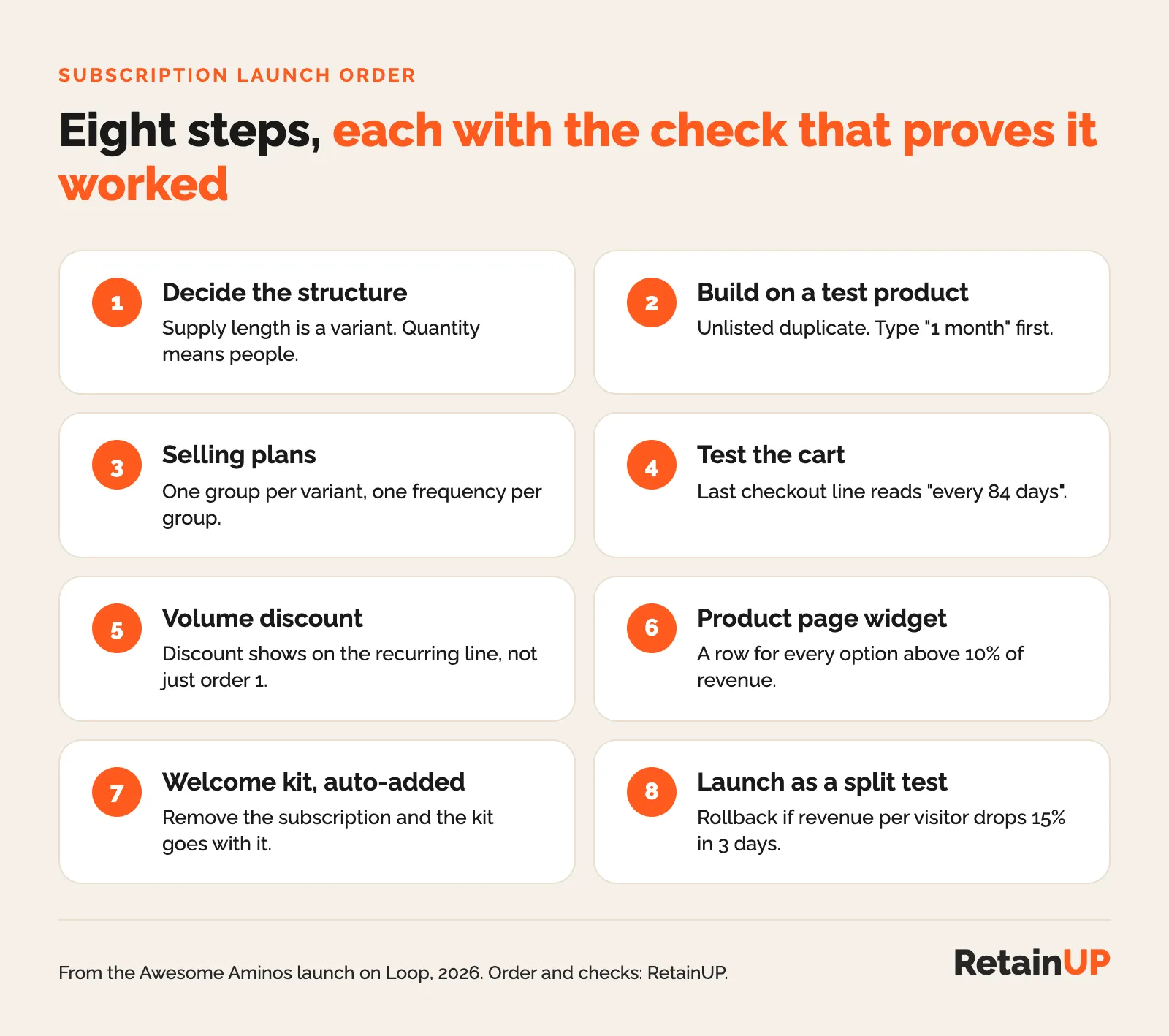
A subscription launch can go wrong before anyone writes a line of copy. The plan is set up on the live product. The frequency says one thing and bills another. And one subscription gets five free gifts. So this is the order we follow, step by step, with the check that proves each step worked. It comes from a real launch: Awesome Aminos, a kids and adults amino acid gummy on Loop, adding a 3-month supply next to the monthly plan.
It sits in the Subscription Apps hub, so it stays on the tool work. The offer itself (which discount, which plan lengths) belongs in Subscription Offer Engineering. Decide that first. Then come back here.
Before you start: the Shopify rules under every app
Every subscription app sits on Shopify's checkout. So a few of Shopify's own rules apply whichever app you pick. Check them once, before step 1.
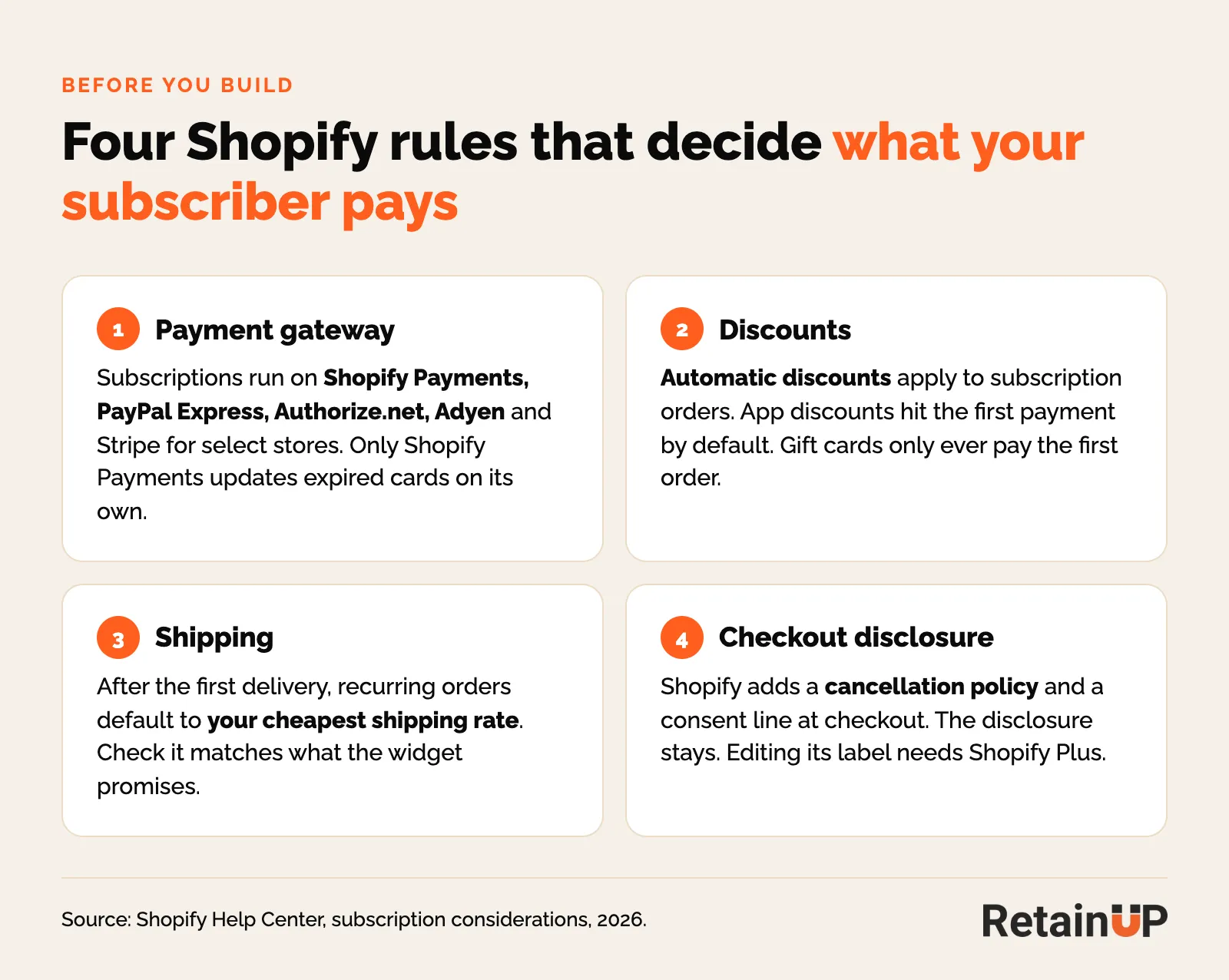
- Payment gateway. Subscriptions run on Shopify Payments, PayPal Express, Authorize.net, Adyen, and Stripe for select stores, per Shopify's subscription considerations. Only Shopify Payments updates expired cards on its own. On anything else, more failed charges land on your card update flow.
- Discounts. Automatic discounts apply to subscription orders. App discounts apply to the first payment by default, and gift cards only ever pay the first order. Step 5 is where this bites.
- Shipping. After the first delivery, recurring orders default to your cheapest shipping rate. Keep that in mind if the widget promises free shipping.
- Checkout disclosure. Shopify adds a cancellation policy and a consent line at checkout once a plan exists. The disclosure can't be removed. What your own policy promises belongs in cancellation rules.
Then keep the first launch small. Recharge's launch guide suggests one or two products and one or two frequencies to start. We start with the hero product too. And never more than 3 frequencies.
Step 1: Decide the structure before you touch the tool
Supply length is a variant. Not a quantity, and not a frequency.
Loop's portal lets a customer change frequency and quantity separately. So any setup where "3 packs" relies on the customer keeping both in sync will break. Quarterly to monthly at quantity 3 bills three packs a month. Monthly to quarterly at quantity 1 ships one pack a quarter, silently. Nobody notices. Until the cancel reasons start saying "too much product".
One of our French brands builds it the safe way: the variant reads "3 mois / Mangue" and the quantity stays at 1. Quantity then means people. Two people, two packs.
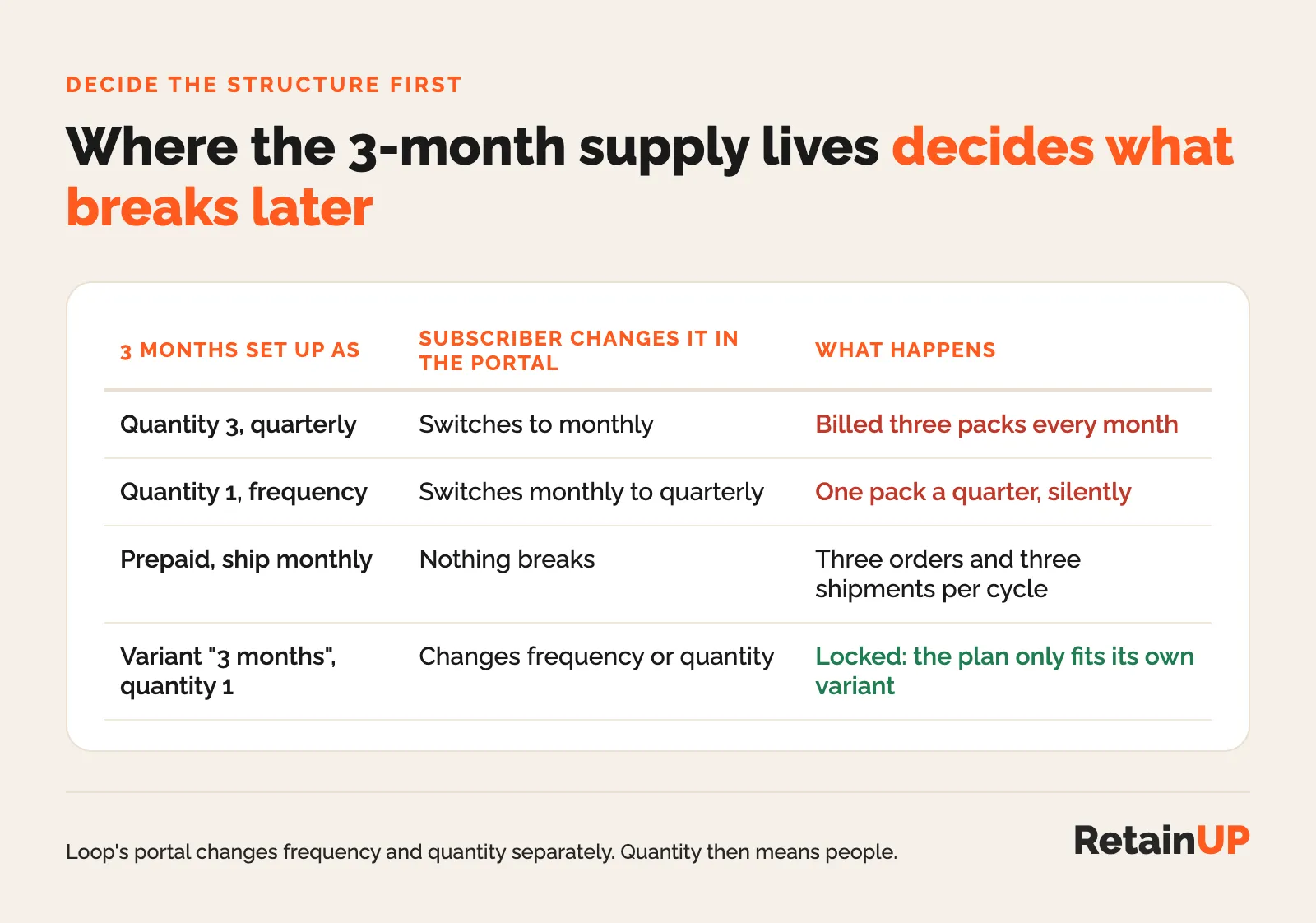
Prepaid is the only other safe shape. Pay once, ship monthly, quantity 1. It works. But it creates three orders and three shipments per cycle. The trade-off between the two lives in prepaid and longer plans. And the frequency itself should match how fast the product gets used, which the frequency article covers.
Step 2: Build on a test product first
Never build on the live product. Duplicate it, set the copy to Unlisted, and take it out of other sales channels and collections. Now you can break things without a single live subscriber seeing it.
Add the option Supply and type 1 month first, then 3 months. The order matters. Shopify gives the existing variant to the first value you type. On the real product that keeps the variant ID, the SKU, the stock and every live subscriber on 1 month. Type 3 months first and your current subscribers are suddenly on a variant that doesn't match what they pay for.
The 3-month variant at Awesome Aminos looked like this:
| Field | Value |
|---|---|
| Price | 3 × the one-time price (Kids $180, Adults $210) |
| SKU | Its own, matching the 3PL kit |
| Barcode | Blank. The UPC belongs to the single pack |
| Weight and package | 3 × the single pack, in a box three packs fit |
| Track quantity | Off, or it shows sold out |
Then inventory. Every founder asks. Your 3PL sets up the 3-pack SKU as a kit of three single packs. Tracking stays off on the 3-pack, so nothing stops it selling when stock runs low. Watch single-pack stock instead.
Moving the test product to the real one
When the test passes, repeat step 2 on the live product with 1 month typed first. Confirm the variant ID and SKU didn't change. Move the selling plans across, then put the widget on the live theme. The widget itself needs no changes, if it reads the product's own variants (more on that in step 6).
Step 3: Set up selling plans
In Loop, that's one selling plan group per variant, one frequency per group, and not prepaid.
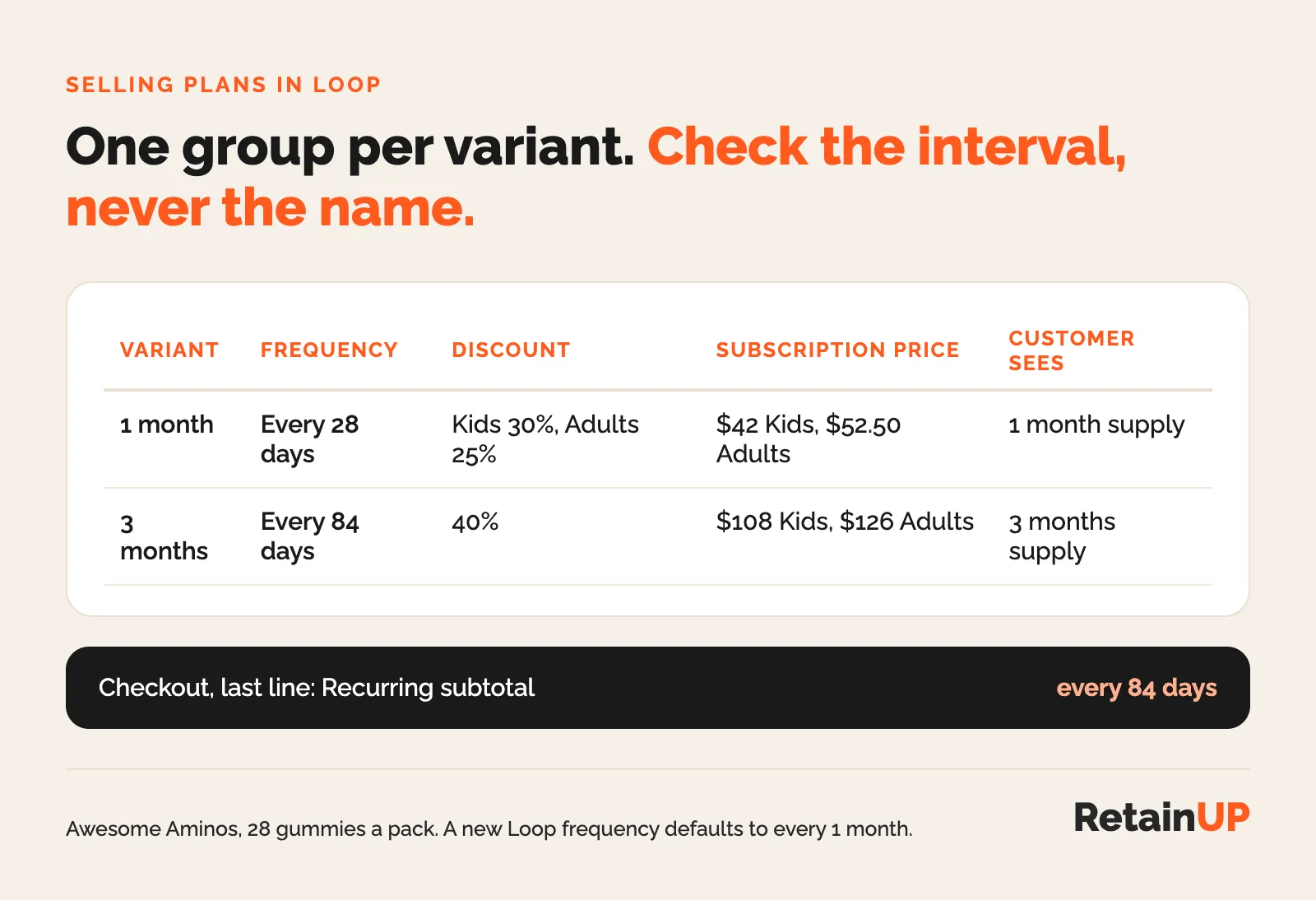
Use 84 days. Not "3 months". A pack is 28 gummies and the base already runs on 28. A calendar quarter drifts away from the bottle every cycle.
Two traps in Loop. First, prepaid cannot be unticked once a group is saved. Build a new group rather than fight it. And a new Loop frequency defaults to deliver every 1 month, whatever you named it. Check the interval, never the name.
The same idea holds on other apps, the screens just differ. The settings for each are in the Loop, Recharge, Skio and Stay AI setup guides.
Step 4: Test the cart before anyone sees it
People skip this step. It's also the one that caught the real bug.
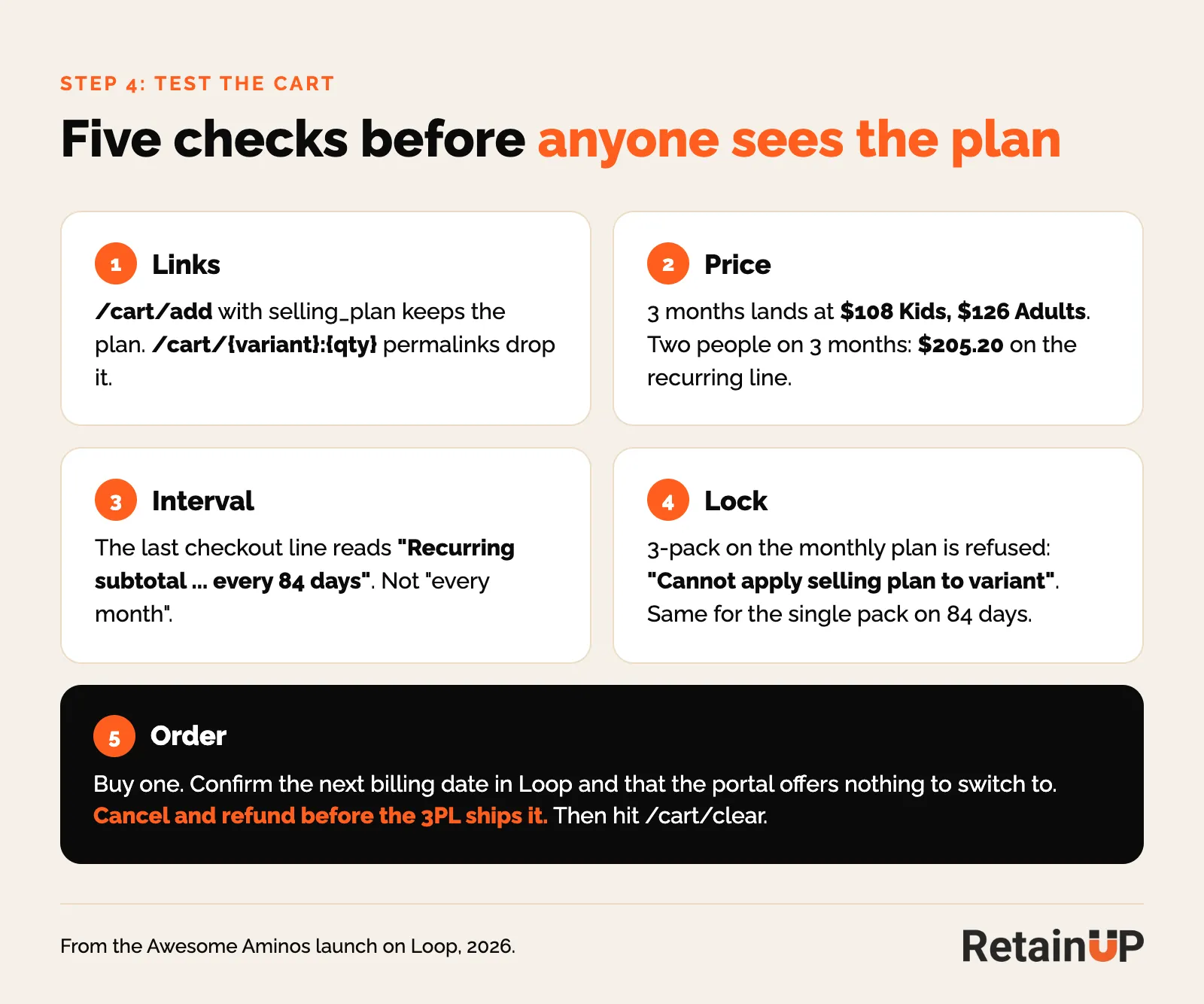
- Links.
/cart/add?id={variant}&quantity={n}&selling_plan={plan}keeps the plan./cart/{variant}:{qty}permalinks go straight to checkout and drop it. - Price. 3 months should land at $108 for Kids, $126 for Adults.
- Interval. Read the checkout's last line: "Recurring subtotal ... every 84 days". Awesome Aminos read "every month" until this was caught.
- Lock. The 3-pack on the monthly plan and the single pack on the quarterly plan must both be refused: "Cannot apply selling plan to variant".
- Order. Buy one. Confirm the next billing date in Loop and that the portal offers nothing to switch to. Then cancel and refund before the 3PL ships it.
Clear the cart between tests with /cart/clear. Otherwise one test leaks into the next and you chase a price that isn't real.
Step 5: Add the volume discount the right way
Awesome Aminos gives 5% more off when two or more people subscribe. Sounds simple. It wasn't. Not on Loop.
Loop Bundles discounts fire only on items added through the bundle's own URL, so a product page widget never triggers them. Use a Shopify automatic discount instead: minimum quantity 2, purchase type subscription, all recurring payments. Shopify's own rule backs this up. Automatic discounts reach subscription orders. App discounts stop after the first payment by default. Then turn the Loop bundle off, because "Combine with other Shopify discounts" lets the two stack to 10%.
The check: two people on 3 months should read $205.20 every 84 days on the recurring line. If it says $216 there, the discount only covers the first order, and your subscribers get a price rise on order 2 that nobody told them about.
Step 6: Build the product page widget
What the widget should look like (default, layout, how many options) is in the subscription widget article. Here it's only the build.
- One Liquid snippet in a Custom liquid block. It reads the product's own variants and plans, so there are no IDs to edit, and one template serves Kids and Adults.
- Install on a duplicate of the live theme. Awesome Aminos' live theme is GitHub-connected, so going live is a commit, not a paste.
- Use an alternate template with the widget in the buy box. Hide the theme's price, variant picker, quantity, buy buttons, Loop's own block and any sticky add-to-cart.
- Preview needs both parameters:
?preview_theme_id={id}&view={template}. Without the theme ID you see the live theme's default page. - Keep the bundle row off until the 5% discount exists, or the widget shows a price the cart won't give.
Keep the one-time rows people actually buy
One-time options follow the order mix. Where one-time is under about 30% of revenue, one row for the smallest pack is enough. Above that, show a one-time row for every pack size that sells, priced above its subscription row.
We learned this the hard way. One of our brands' first widget carried a single 1-tub one-time row, while 2- and 3-tub one-time orders were 34% of revenue. Those orders fell by about 90%. So before launch, pull the order mix table and tick off a widget row for every option above 10% of revenue.
Step 7: Add the welcome kit automatically
Gifts go on the subscription rows only. They are the reason to subscribe beyond the price gap, and they cost nothing on the one-time rows. Which gifts and when is in subscription perks and welcome kits.
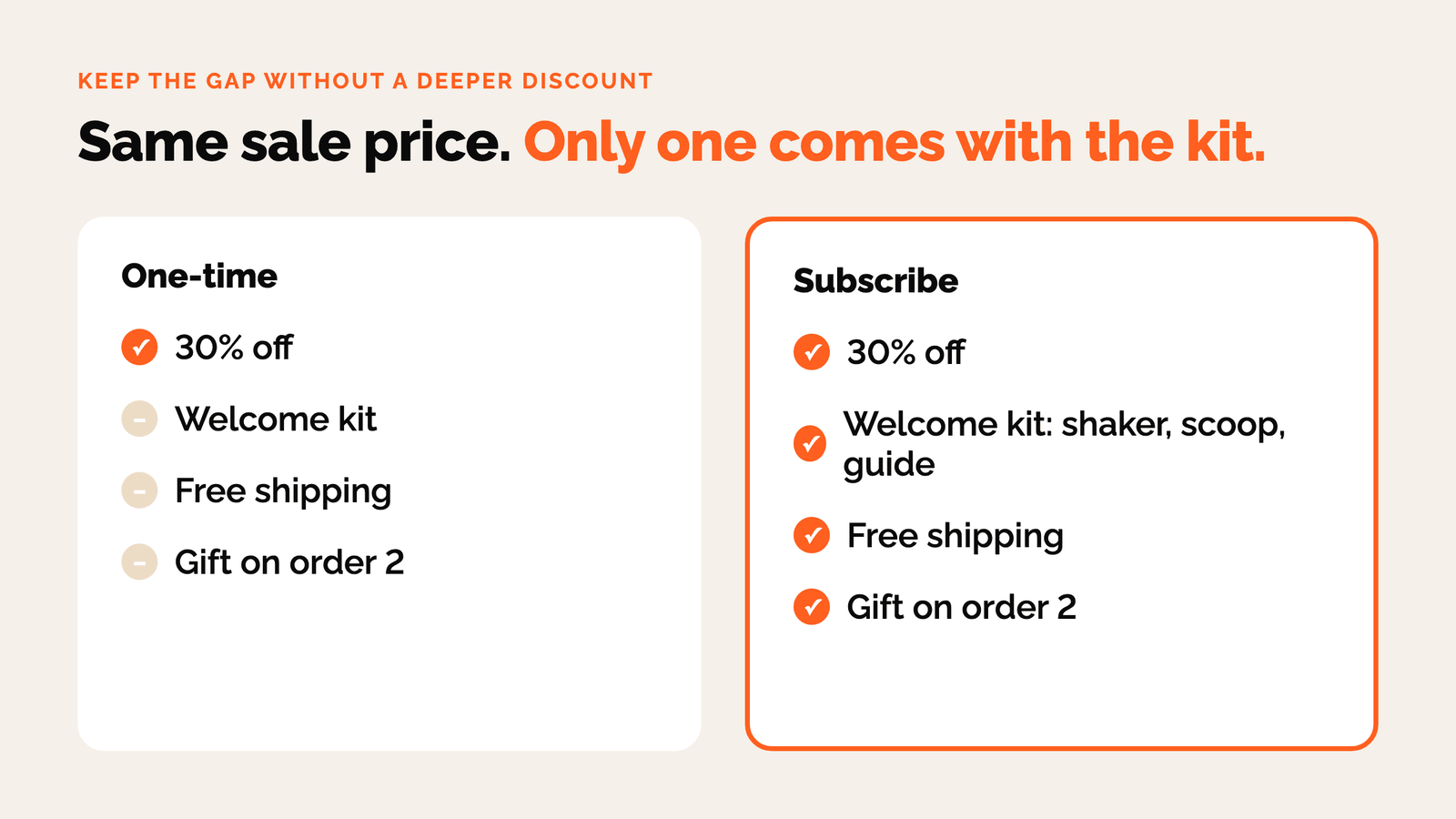
The widget adds the subscription and the kit in one click, with the kit attached through parent_id. Remove the subscription and the kit goes with it. Tested on the live store. Not just the preview.
Plain $0 gifts leak. They can be added alone, and the quantity can be raised: five free on one subscription. So each line gets one kit product at retail value, Unlisted, plus a Buy X get Y automatic discount (buy the 3-month variant, get the kit free, maximum 1 per order). The cart still shows $0.00.
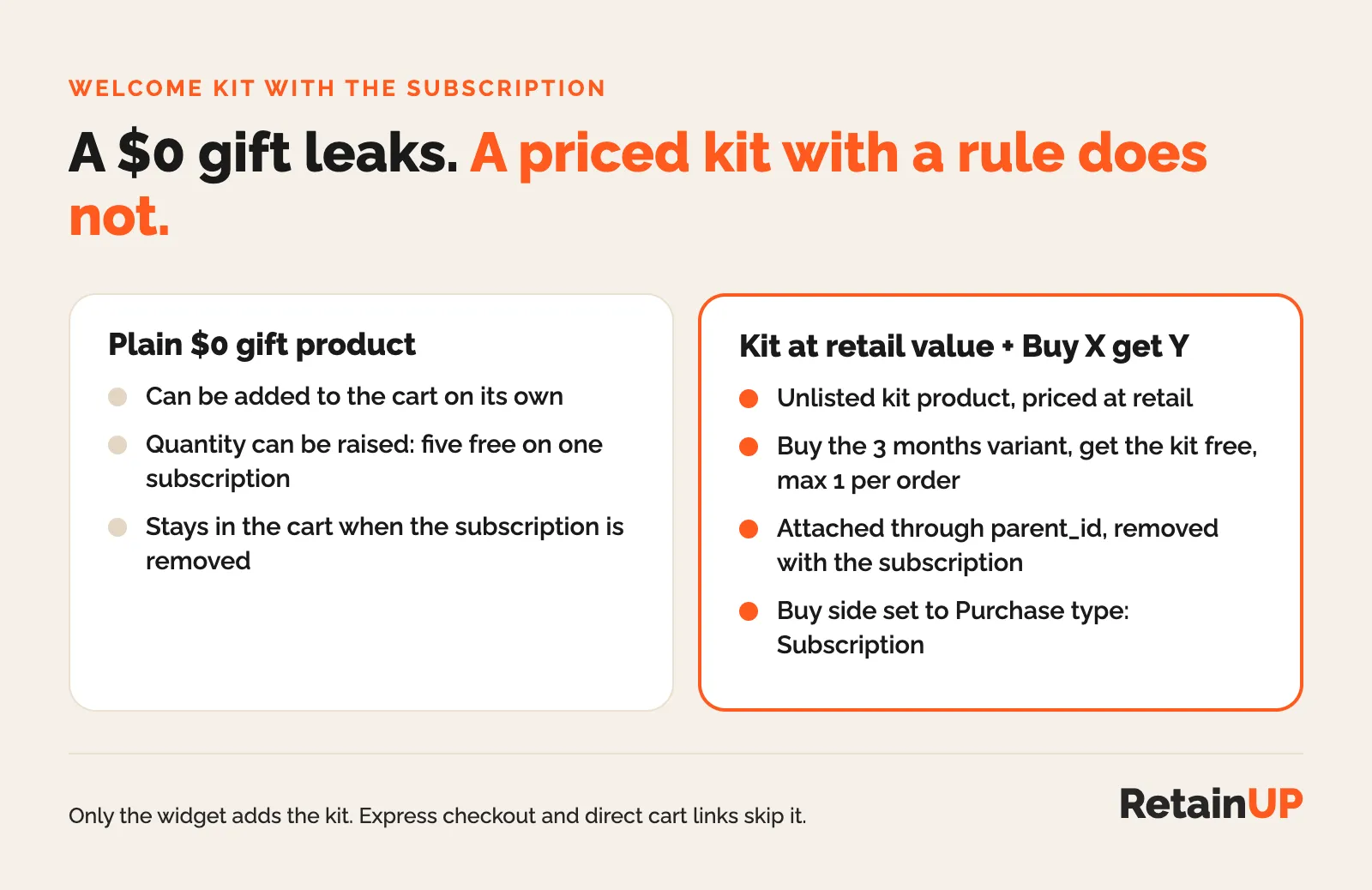
- Only the widget adds the kit. Express checkout buttons, landing pages and direct cart links skip it. Sell the 3-month plan anywhere else? Then you need a free-gift app.
- Gift lines are one-time. They ship with the first order only.
- Set the buy side of the Buy X get Y rule to Purchase type Subscription. A rule built through the API defaults to one-time and never fires on a subscription line.
Step 8: Launch as a split test, not a switch
Don't flip it. Run the new widget against the old buy box. Agree the rollback number before you start: revenue per visitor down 15% after three days, and it comes down.
After launch, read orders per day and revenue per day by widget row, against the order mix table you pulled in step 6. Take rate alone hides a shrinking base. That same brand's take rate rose from 42% to 58% while revenue per day fell 42%. On a take rate report alone, it looked like a win.
If you want the formula for that number, it's in the take rate formula. Just never read it on its own in launch week.
What to keep checking after launch
- Rebuild the Buy X get Y gift rules whenever variants change.
- Check the shared 3-month plan still delivers every 84 days. At Awesome Aminos it was still set to every 1 month at one check. Set 84 days. Easy to miss.
- Match the promise to the checkout. The widget promised free shipping while more than half of processed subscription orders were still charged $1.99. Renewals take your cheapest shipping rate, so that rate has to be $0.
And the launch is only the front door. The cancel flow, payment recovery and reminders need setting up in the same app, which the app comparison weighs app by app. Have the reminder, payment failed and cancel emails from the core subscription email flows live before the first renewal.
If you'd rather not run these eight steps yourself, the Subscription LTV Maximizer™ builds the offer, widget, cancel flow, portal, payment recovery, pause and skip in Recharge, Skio, Stay AI or Loop, plus email and SMS, live in 30 days for $5,000. Already live and unsure what's leaking? The free subscription audit checks 48 points and sends your top 3 leaks in 24 hours.
FAQ
How do I set up subscriptions on Shopify?
Install a subscription app such as Loop, Recharge, Skio or Stay AI, then build selling plans on a test product before the live one. Decide the structure first: make each supply length its own variant, give each variant one selling plan group with one frequency, and test the cart until the checkout's recurring line shows the right price and interval. Only then add the product page widget and launch it as a split test.
Which payment gateways support subscriptions on Shopify?
Shopify Payments, PayPal Express, Authorize.net and Adyen support subscriptions, and Stripe does for select stores. Shopify Payments is the safest pick, because it is the only one that updates expired cards on its own. On other gateways, more renewals fail on dead cards and wait for the subscriber to update them. Check your gateway before you build anything, since a store on an unsupported gateway cannot sell the plan at all.
Why does my subscription discount only apply to the first order?
The discount was set for the first payment only, or it comes from a bundle tool that fires only on its own URL. In Shopify, create an automatic discount with purchase type subscription and apply it to all recurring payments. Then check the recurring line at checkout, not the order total. If the recurring line shows full price, subscribers get a silent price rise on order 2.
How do I add a free welcome kit to a subscription on Shopify?
Create the kit as an Unlisted product priced at retail value, then add a Buy X get Y automatic discount that makes it free with the subscription variant, maximum one per order. Set the buy side to Purchase type Subscription. A plain $0 gift product can be added alone or in any quantity, so it leaks. Express checkout and direct cart links skip the kit unless a free-gift app adds it.
How long does it take to launch a subscription program?
Once the offer is decided, most of the work is testing. It covers cart links, recurring prices, intervals, gift rules and one real test order that you cancel before it ships. Then run the new widget as a split test for at least three days against an agreed rollback number. We put a full program live in 30 days, cancel flow and payment recovery included.
One email a week on subscription retention: the numbers, the strategy, and what to fix first.

Rahi Jain
Rahi Jain is a subscription LTV specialist who helps $1M to $10M DTC brands reduce subscription churn and maximize LTV on Recharge, Skio, Stay AI and Loop.
More about Rahi